Vue3 + Quill富文本编辑器封装

 0
0 0
0 0
0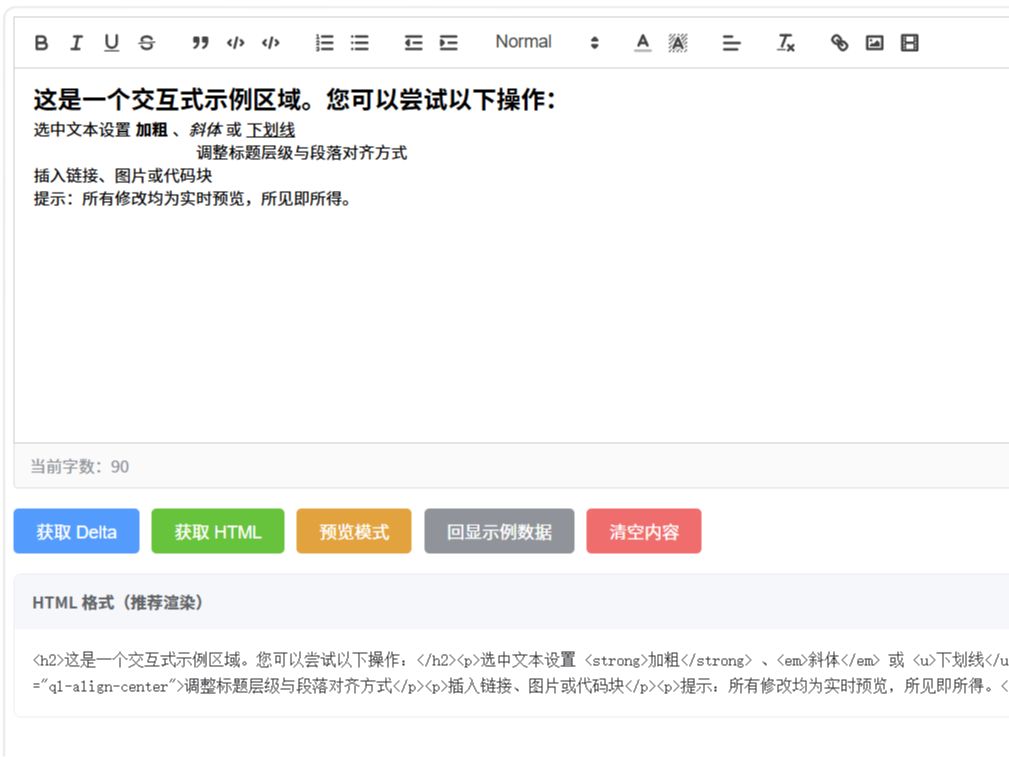
本文以 WebStorm 为开发环境,演示从项目创建到依赖安装的完整流程。重点解析 Quill 富文本编辑器的初始化方法,并梳理常用配置参数,助你快速实现编辑器集成与基础定制。
1
创建项目
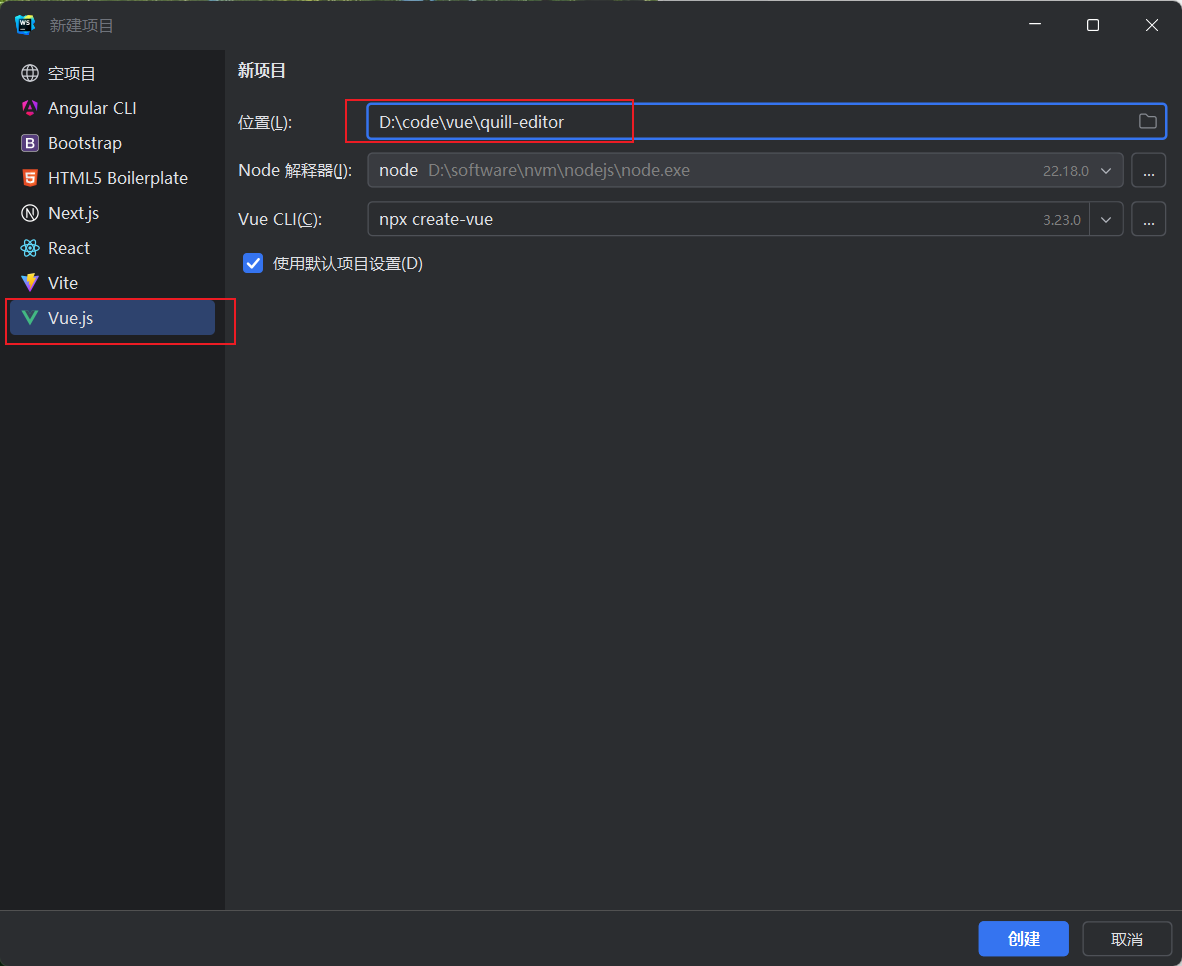
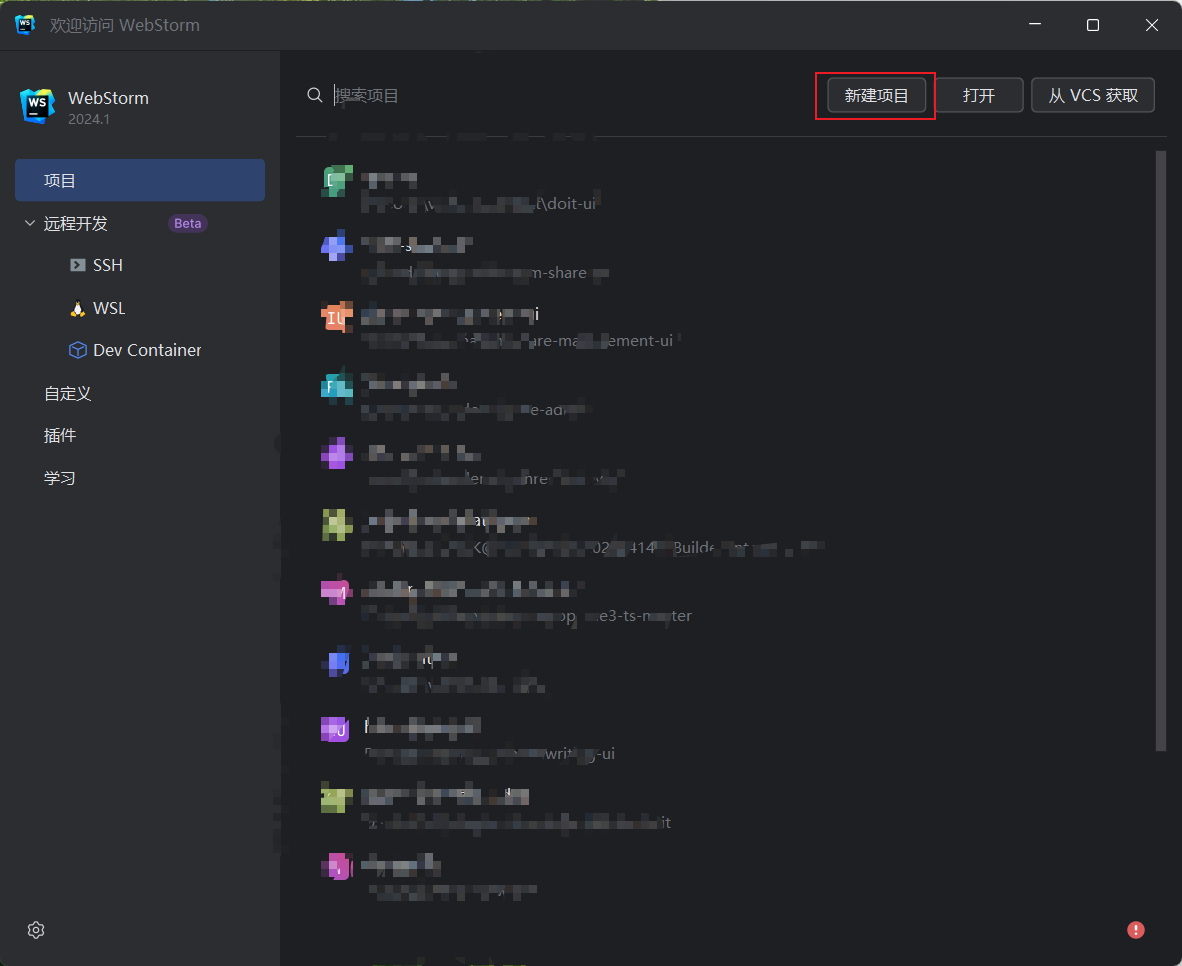
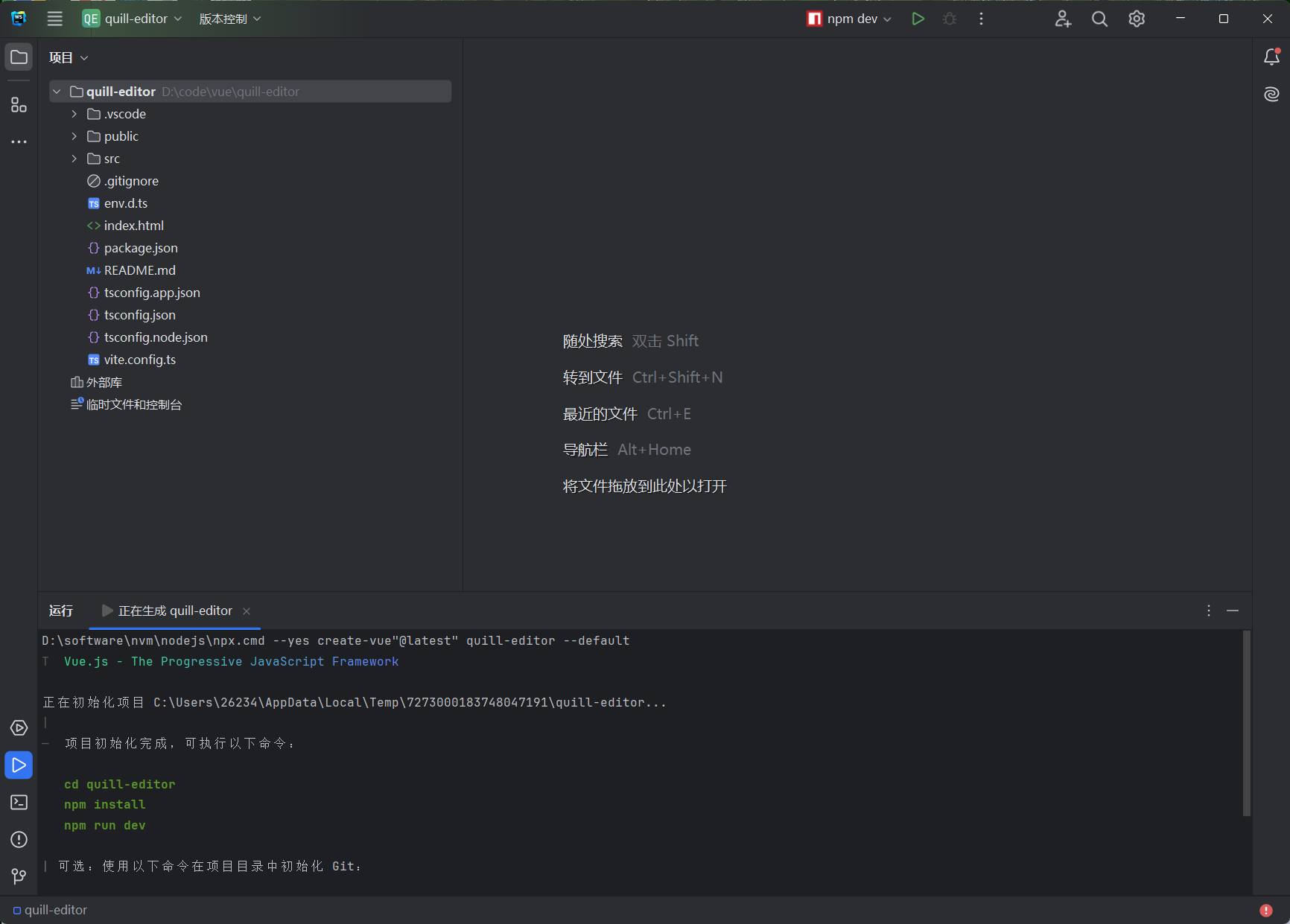
123
2
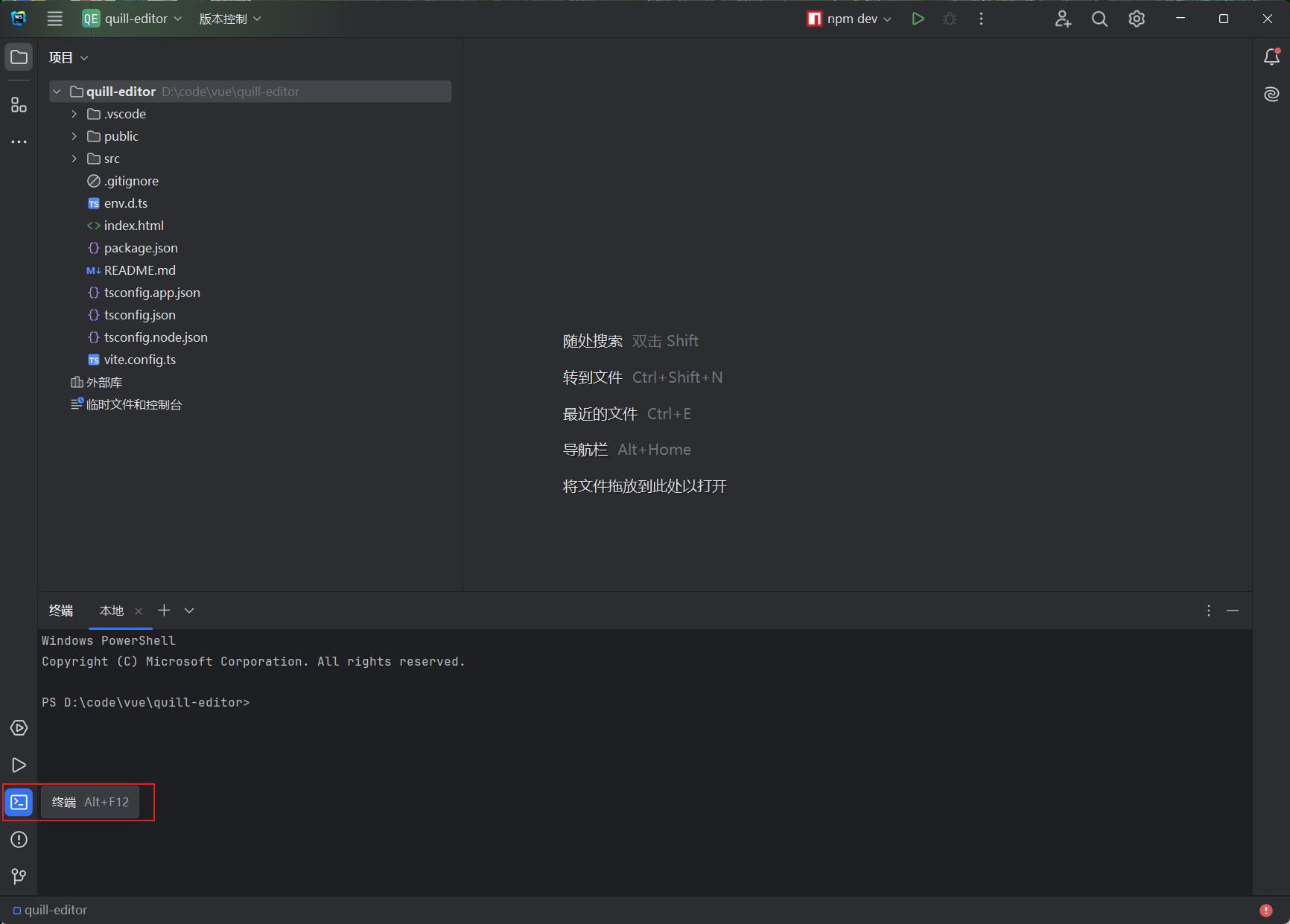
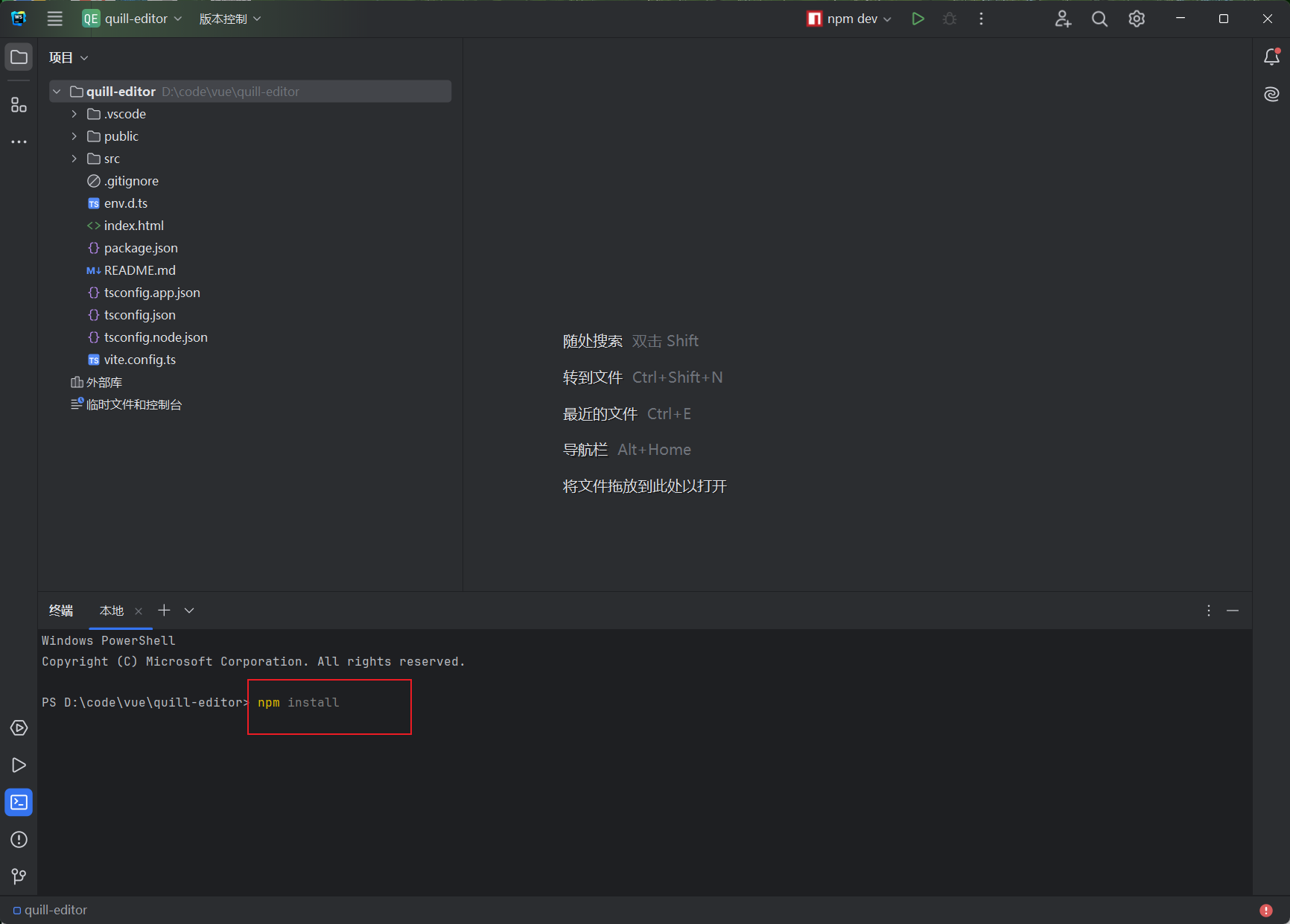
安装依赖
123
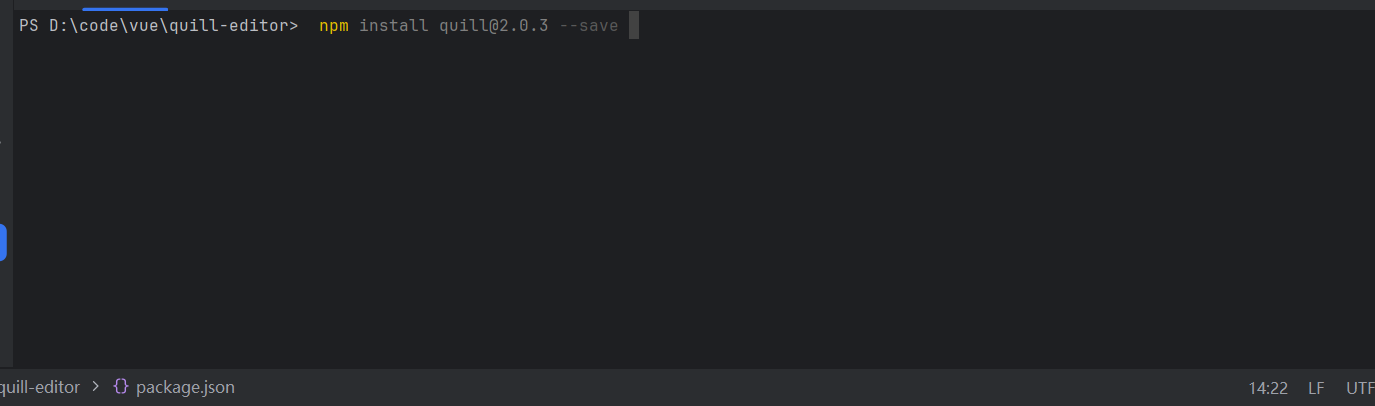
在左侧侧边栏切换至“终端”选项卡,执行 npm install 安装项目依赖并生成 node_modules 目录。随后,运行 npm install quill@2.0.3 安装指定版本的 Quill 编辑器。安装完成后可以在package.json的dependencies中查看到安装的quill版本信息。
3
quill初始化
12
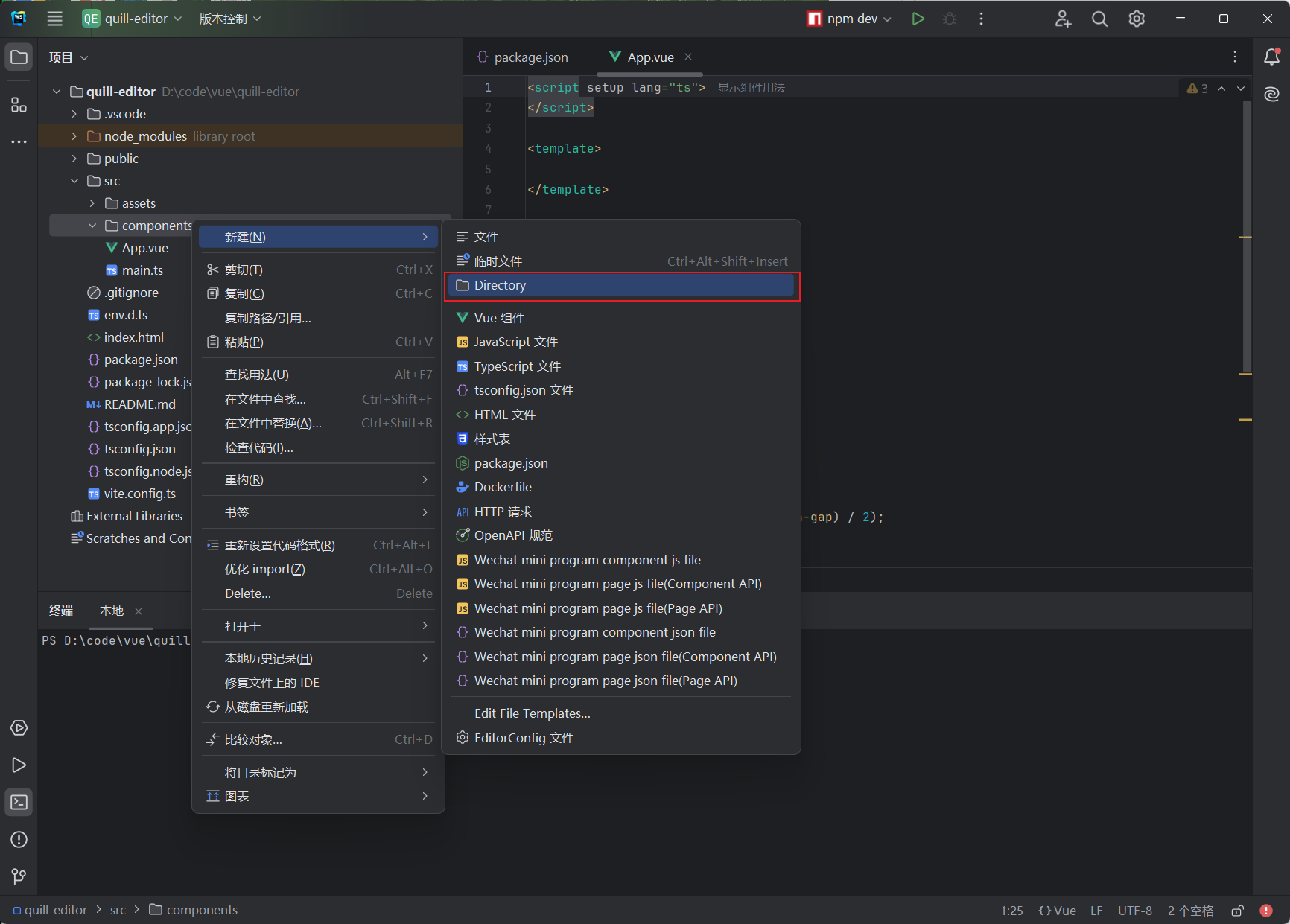
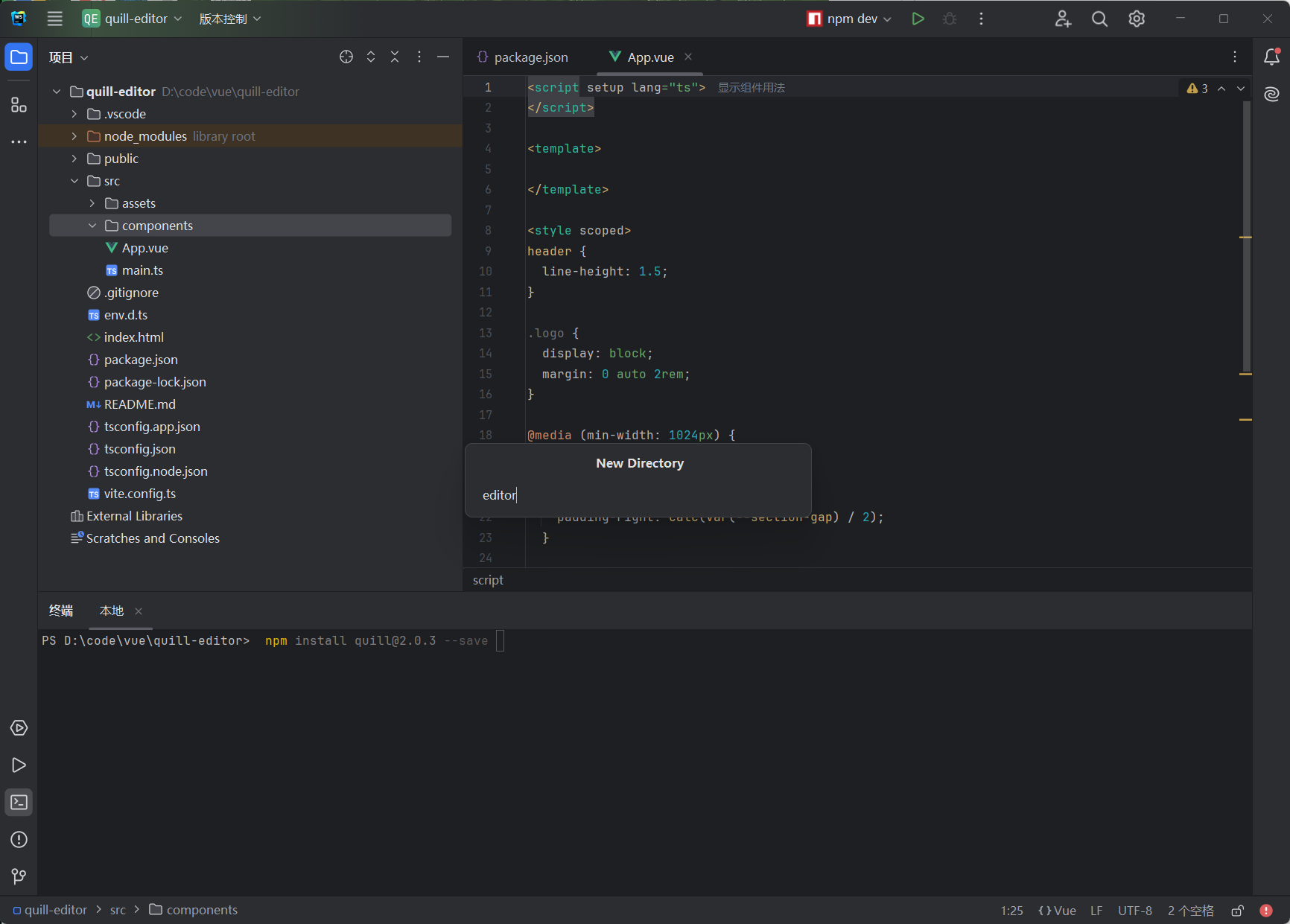
删除 components和assets 目录内的所有文件,然后创建新目录 components/editor。在此目录下新建一个.vue页面,命名为Quill。
<script setup lang="ts">
import Quill from 'quill'
import 'quill/dist/quill.snow.css';
import {onMounted} from "vue";
onMounted(()=>{
const options = {
theme: 'snow',
modules: {
toolbar: [
['bold', 'italic', 'underline', 'strike'], // 加粗 斜体 下划线 删除线
['blockquote', 'code-block', 'code'], // 引用 代码块
[{ list: 'ordered' }, { list: 'bullet' }], // 有序、无序列表
[{ indent: '-1' }, { indent: '+1' }], // 缩进
[{ header: [1, 2, 3, 4, 5, 6, false] }], // 标题
[{ color: [] }, { background: [] }], // 字体颜色、字体背景颜色
[{ align: [] }], // 对齐方式
['clean'], // 清除文本格式
['link', 'image', 'video'] // 链接、图片、视频
]
}
};
const quill = new Quill('#editor',options);
})
</script>
<template>
<div id="editor" class="quill-editor"/>
</template>
<style >
.quill-editor {
width: 100%;
height: 300px;
display: flex;
}
</style>
4
APP页面
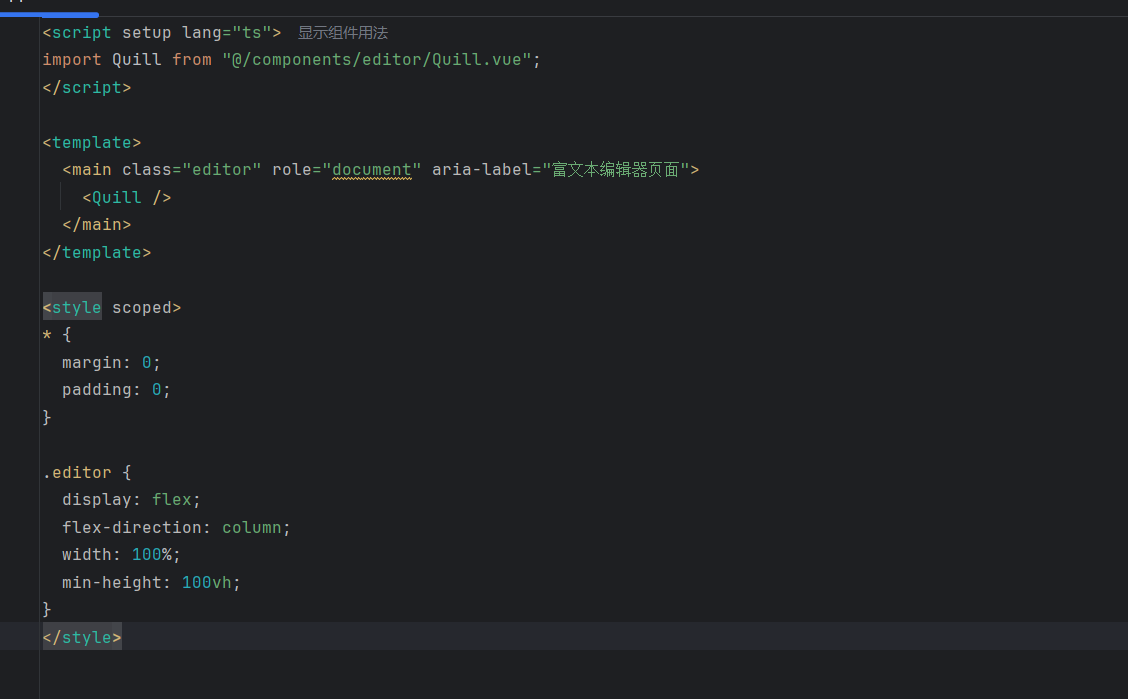
删除app页面中所有的内容,复制粘贴一下内容。
<script setup lang="ts">
import Quill from "@/components/editor/Quill.vue";
</script>
<template>
<main class="editor" role="document" aria-label="富文本编辑器页面">
<Quill />
</main>
</template>
<style scoped>
* {
margin: 0;
padding: 0;
}
.editor {
display: flex;
flex-direction: column;
width: 100%;
min-height: 100vh;
}
</style>
5
运行项目
12
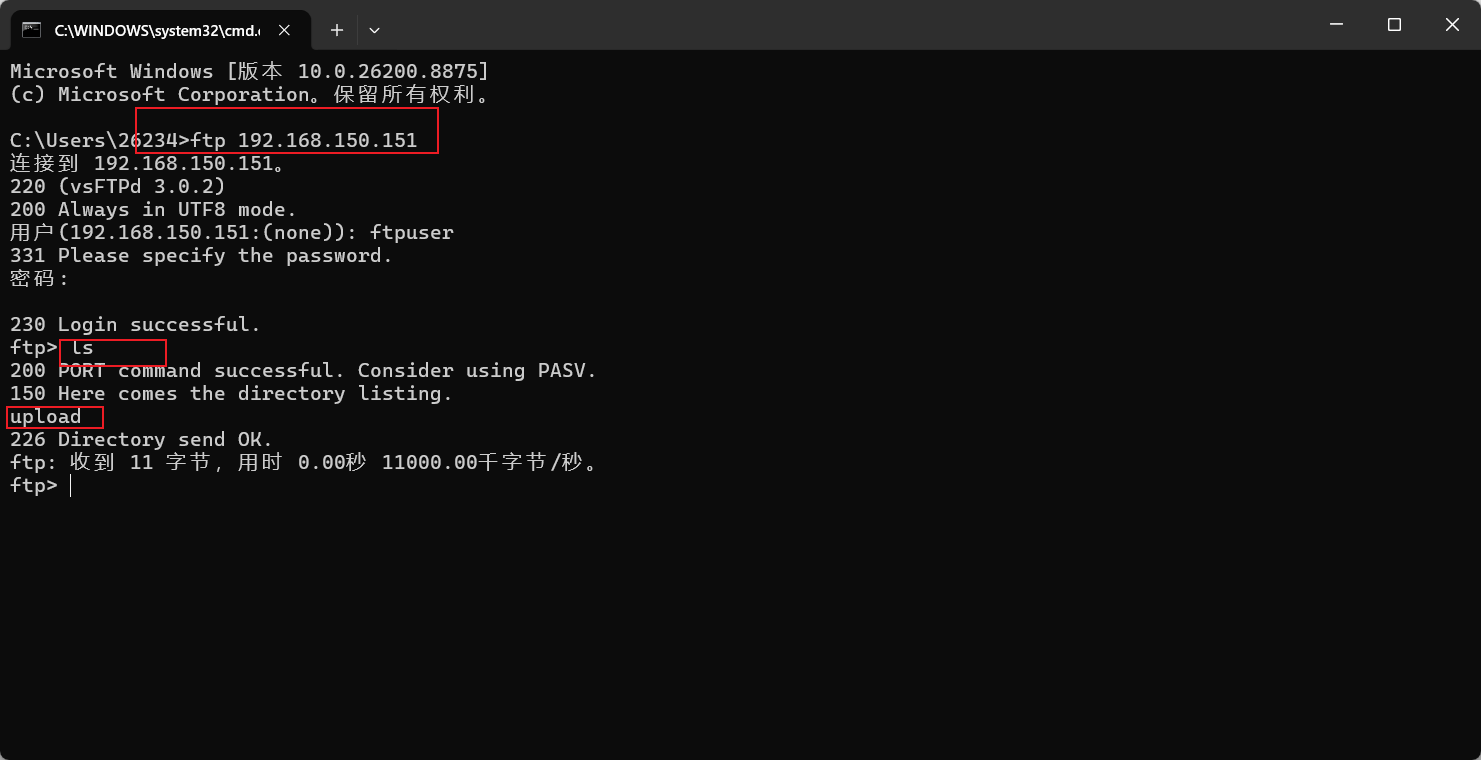
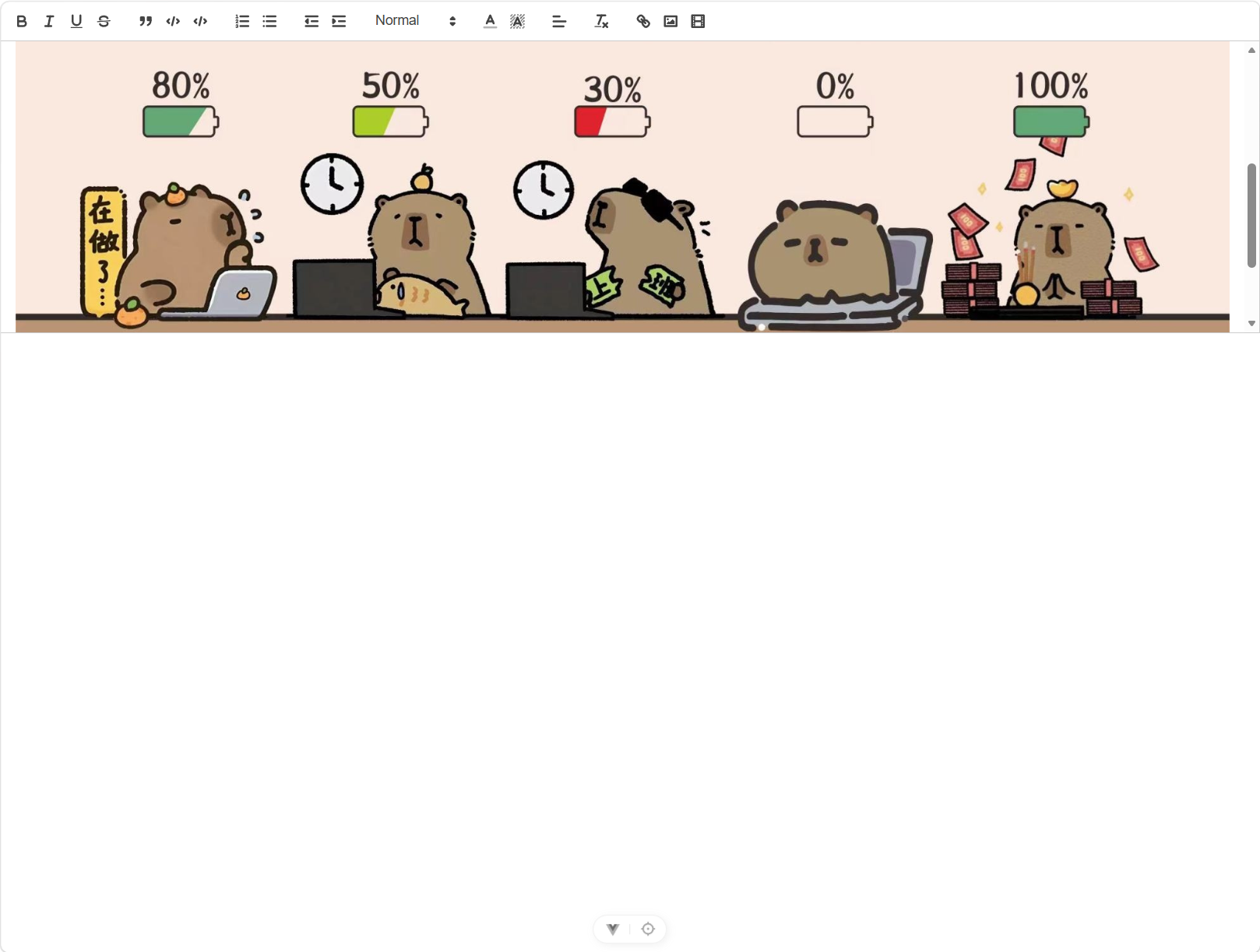
在终端中执行 npm run dev 启动开发服务器,随后在浏览器中访问 http://localhost:5173 即可预览项目。
6
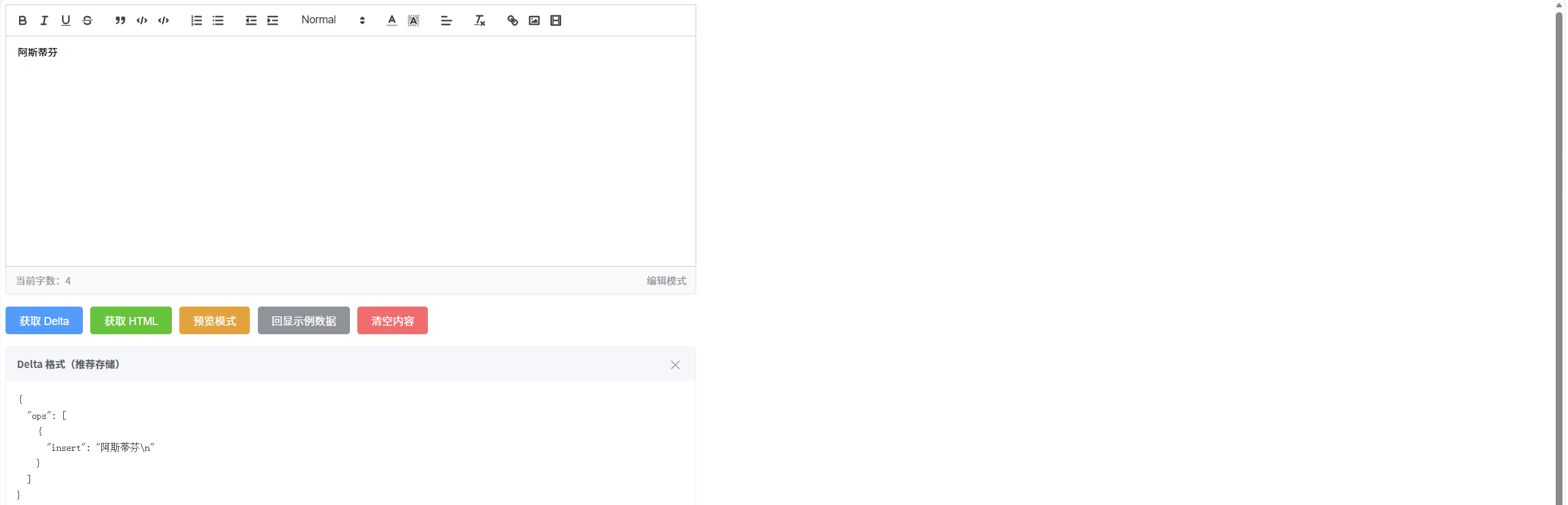
数据回显
<script setup lang="ts">
import Quill from 'quill'
import 'quill/dist/quill.snow.css';
import {onMounted, ref} from "vue";
let quillInstance: Quill | null = null;
onMounted(() => {
const options = {
theme: 'snow',
modules: {
toolbar: [
['bold', 'italic', 'underline', 'strike'], // 加粗 斜体 下划线 删除线
['blockquote', 'code-block', 'code'], // 引用 代码块
[{list: 'ordered'}, {list: 'bullet'}], // 有序、无序列表
[{indent: '-1'}, {indent: '+1'}], // 缩进
[{header: [1, 2, 3, 4, 5, 6, false]}], // 标题
[{color: []}, {background: []}], // 字体颜色、字体背景颜色
[{align: []}], // 对齐方式
['clean'], // 清除文本格式
['link', 'image', 'video'] // 链接、图片、视频
]
}
};
quillInstance = new Quill('#editor', options);
// 监听内容变化,实时更新字数
quillInstance.on('text-change', updateWordCount);
// 初始化时立即计算一次(处理回显数据的场景)
updateWordCount();
})
// 更改字数统计数量
const updateWordCount = () => {
if (!quillInstance) return;
const text = quillInstance.getText();
wordCount.value = text.length > 0 ? text.length - 1 : 0;
};
const wordCount = ref(0);
const isReadOnly = ref(false);
const outputContent = ref('');
const outputLabel = ref('');
// 获取delta数据格式
const handleGetDelta = () => {
const delta = quillInstance?.getContents();
outputLabel.value = 'Delta 格式(推荐存储)';
outputContent.value = JSON.stringify(delta, null, 2);
};
// 获取html格式数据
const handleGetHtml = () => {
const html = quillInstance?.root.innerHTML;
outputLabel.value = 'HTML 格式(推荐渲染)';
outputContent.value = html || '';
};
// 切换编辑器状态
const toggleReadOnly = () => {
isReadOnly.value = !isReadOnly.value;
if (isReadOnly.value) {
quillInstance?.disable();
} else {
quillInstance?.enable();
}
};
// 设置回显数据
const handleLoadDemoData = () => {
const demoDelta: any = {
ops: [
{insert: '这是一段通过 '},
{insert: 'setContents()', attributes: {bold: true, color: '#e6a23c'}},
{insert: ' 回显的内容。\n'},
{insert: '支持标题、列表等所有格式无损还原。\n', attributes: {header: 2}}
]
};
quillInstance?.setContents(demoDelta, 'silent');
outputContent.value = ''; // 关闭输出面板
};
// 清除内容
const handleClear = () => {
quillInstance?.setText('', 'user');
outputContent.value = '';
};
</script>
<template>
<div class="quill-demo-wrapper">
<!-- 编辑器容器 -->
<div id="editor" class="quill-editor"></div>
<!-- 字数统计栏 -->
<div class="editor-footer">
<span class="word-count">当前字数:{{ wordCount }}</span>
<span class="mode-tag" :class="{ readonly: isReadOnly }">
{{ isReadOnly ? '预览模式' : '编辑模式' }}
</span>
</div>
<!-- 操作按钮组 -->
<div class="action-buttons">
<button class="btn btn-primary" @click="handleGetDelta">获取 Delta</button>
<button class="btn btn-success" @click="handleGetHtml">获取 HTML</button>
<button class="btn btn-warning" @click="toggleReadOnly">
{{ isReadOnly ? '进入编辑' : '预览模式' }}
</button>
<button class="btn btn-info" @click="handleLoadDemoData">回显示例数据</button>
<button class="btn btn-danger" @click="handleClear">清空内容</button>
</div>
<!-- 输出展示区 -->
<div v-if="outputContent" class="output-panel">
<div class="output-header">
<span>{{ outputLabel }}</span>
<button class="close-btn" @click="outputContent = ''">✕</button>
</div>
<pre class="output-body">{{ outputContent }}</pre>
</div>
</div>
</template>
<style>
.quill-editor {
width: 100%;
height: 300px;
display: flex;
}
.quill-demo-wrapper {
width: 100%;
max-width: 900px;
margin: 0 auto;
}
.editor-footer {
display: flex;
justify-content: space-between;
align-items: center;
padding: 8px 12px;
font-size: 13px;
color: #909399;
border: 1px solid #dcdfe6;
border-top: none;
border-radius: 0 0 4px 4px;
background: #fafafa;
}
.mode-tag.readonly {
color: #e6a23c;
font-weight: 600;
}
.action-buttons {
display: flex;
gap: 10px;
margin-top: 16px;
flex-wrap: wrap;
}
.btn {
padding: 8px 18px;
border: none;
border-radius: 4px;
cursor: pointer;
font-size: 14px;
color: #fff;
transition: opacity 0.2s;
}
.btn:hover {
opacity: 0.85;
}
.btn-primary {
background: #409eff;
}
.btn-success {
background: #67c23a;
}
.btn-warning {
background: #e6a23c;
}
.btn-info {
background: #909399;
}
.btn-danger {
background: #f56c6c;
}
.output-panel {
margin-top: 16px;
border: 1px solid #ebeef5;
border-radius: 6px;
overflow: hidden;
}
.output-header {
display: flex;
justify-content: space-between;
align-items: center;
padding: 10px 14px;
background: #f5f7fa;
font-size: 13px;
font-weight: 600;
color: #606266;
}
.close-btn {
background: none;
border: none;
cursor: pointer;
font-size: 16px;
color: #909399;
}
.output-body {
margin: 0;
padding: 14px;
font-size: 13px;
line-height: 1.6;
white-space: pre-wrap;
word-break: break-all;
max-height: 300px;
overflow-y: auto;
background: #fff;
color: #303133;
}
</style>
 0
0 0
0 0
0 qq空间
qq空间  微博
微博  复制链接
复制链接  分享
分享  本文未经作者允许授权,禁止转载
 更多相关项目
猜你喜欢
评论/提问(已发布 0 条)

 评论
评论  收藏
收藏  分享
分享  下载
下载  举报
举报  回顶部
回顶部