Vue项目实战:Layout布局与路由配置架构搭建(微光聊天室案例)

 0
0 0
0 0
0
这个项目以“微光聊天室”为真实业务背景,完整演示了 Vue 项目中 Layout 布局架构与路由体系的搭建思路。很多前端项目在早期往往只关注页面实现,而忽略整体结构设计,随着功能增多,代码会迅速变得难以维护。本项目的出发点,就是从一开始建立清晰、可扩展的工程骨架。
在实现过程中,我们通过拆分 Layout 容器、侧边栏组件、按钮组件等模块,构建了一个高复用、低耦合的布局体系,并结合嵌套路由实现页面结构与 UI 框架的解耦。整个案例不仅展示了如何写代码,更重点讲解“为什么这样设计”,包括组件职责划分、路由父子关系规划、样式结构组织等关键实践。
1
创建laylout架构

12
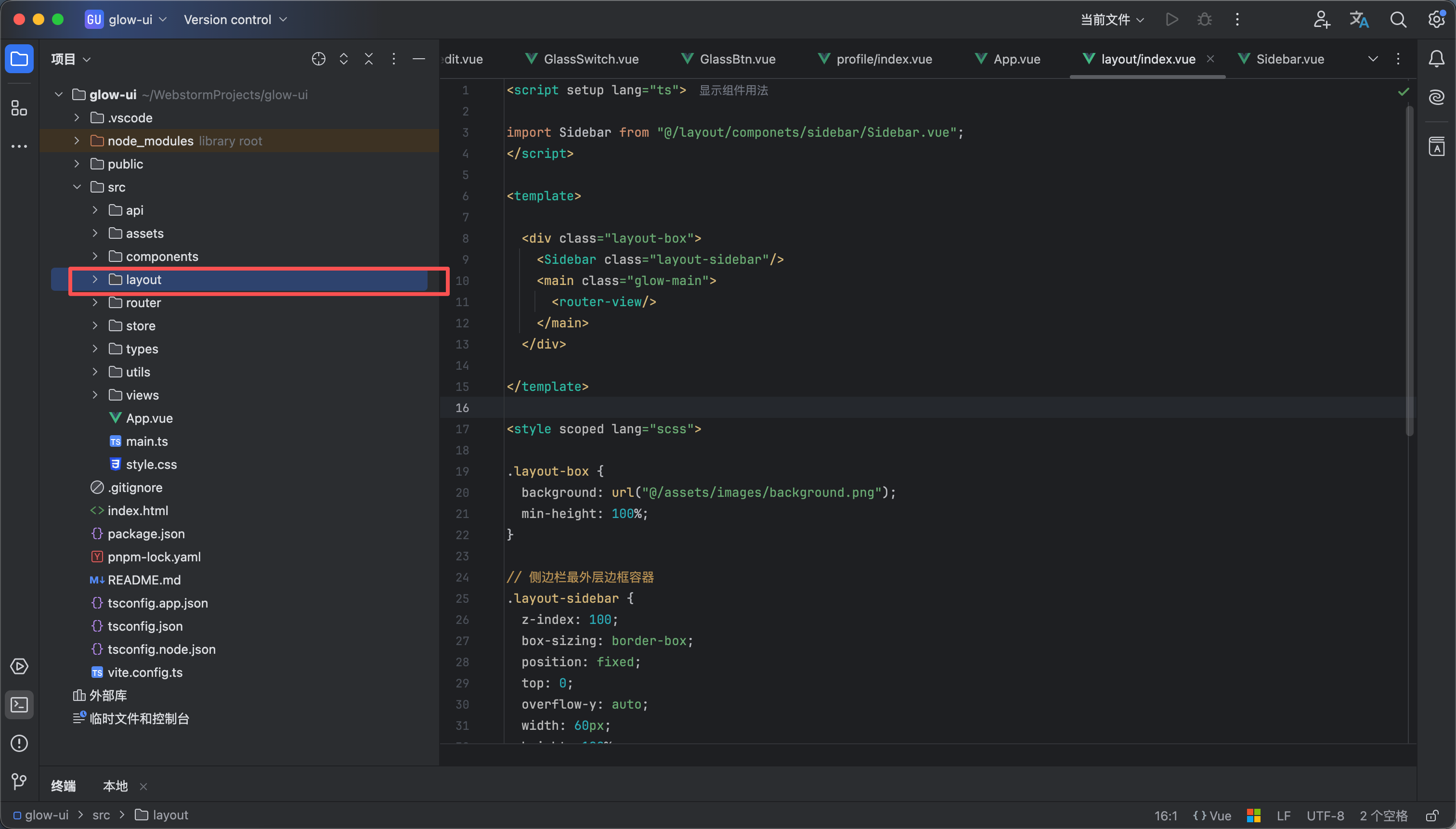
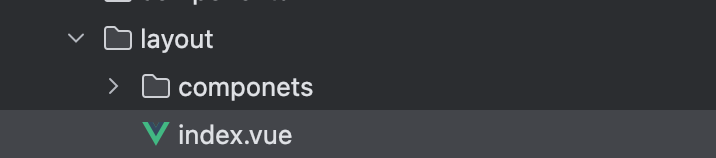
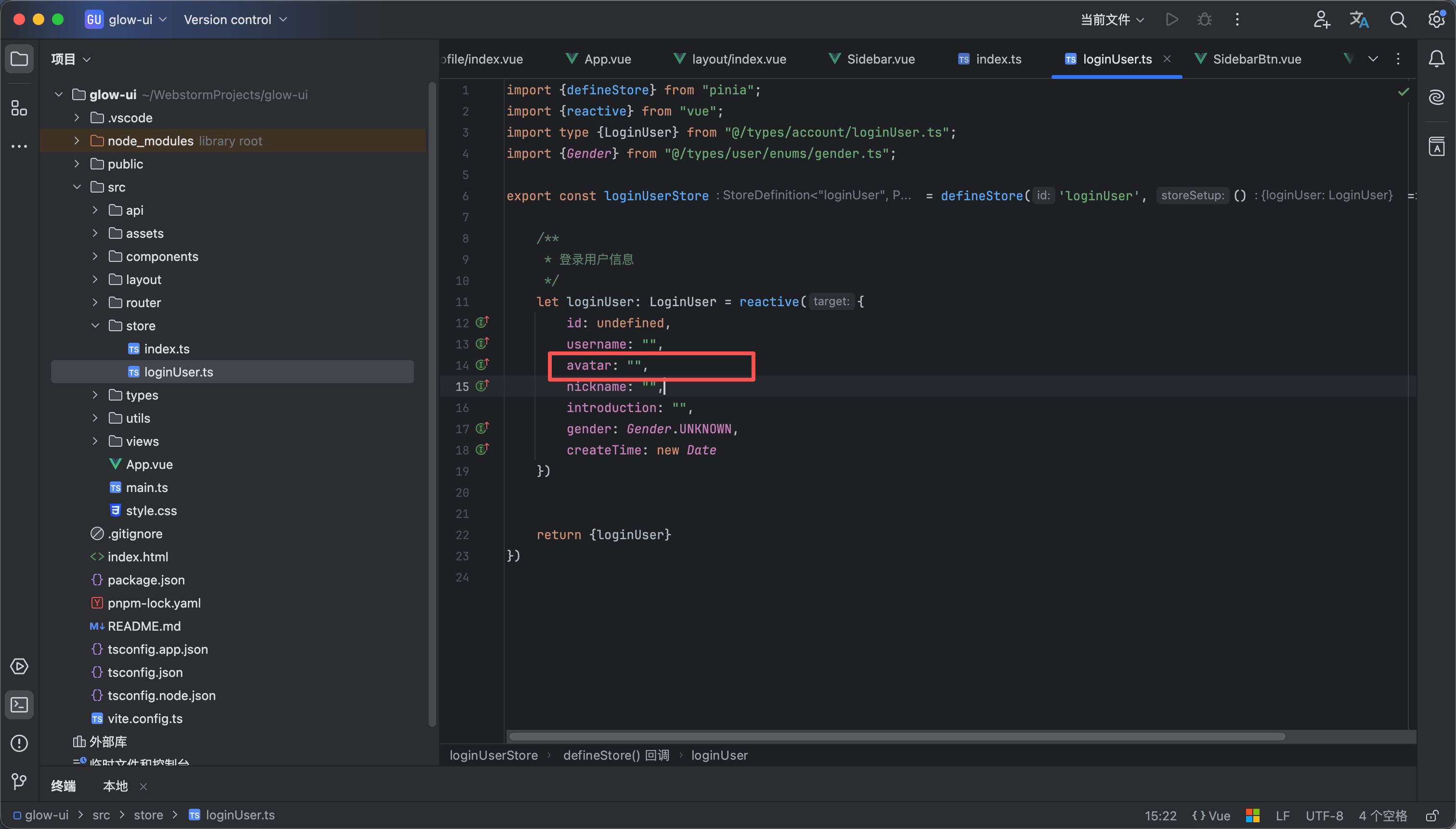
- 如图1所示创建一个包就叫layout
- 然后layout文件夹下面又一个index.vue就是我们的主要内容 以及一个components的包这个layout的一些组件
2
侧边栏按钮组件
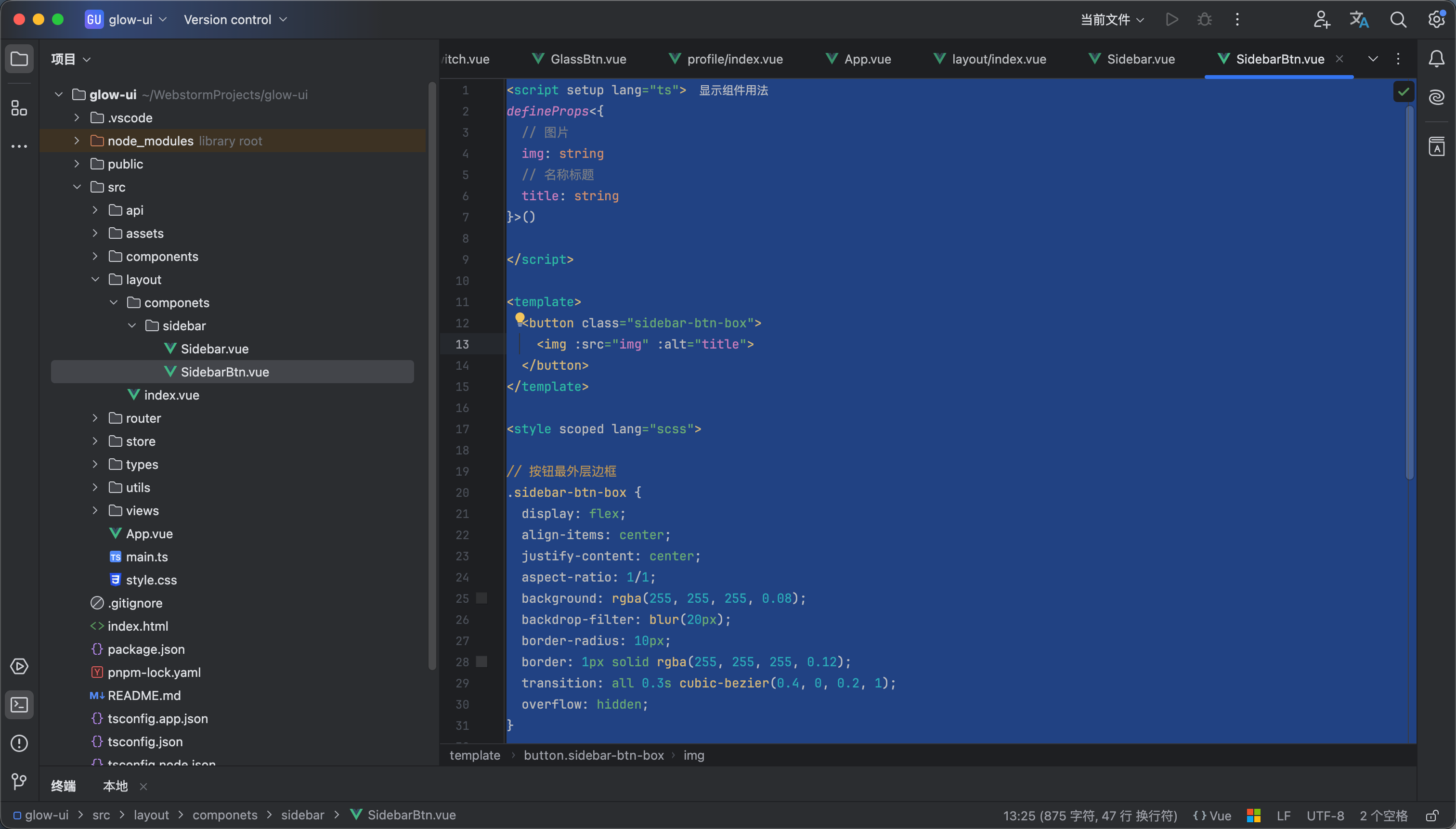
1234
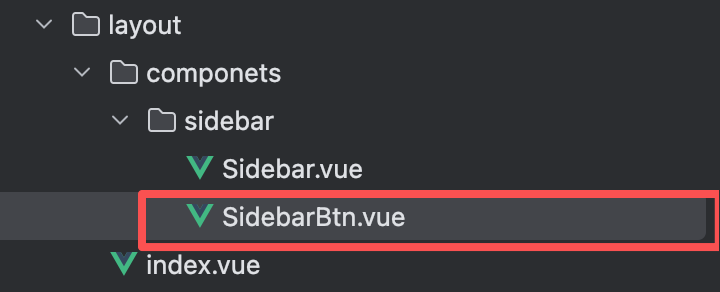
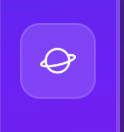
- 如图1所示新建一个组件叫 SidebarBtn 这个里面放的就是侧边栏用的按钮样式 代码内容如下
<script setup lang="ts">
defineProps<{
// 图片
img: string
// 名称标题
title: string
}>()
</script>
<template>
<button class="sidebar-btn-box">
<img :src="img" :alt="title">
</button>
</template>
<style scoped lang="scss">
// 按钮最外层边框
.sidebar-btn-box {
display: flex;
align-items: center;
justify-content: center;
aspect-ratio: 1/1;
background: rgba(255, 255, 255, 0.08);
backdrop-filter: blur(20px);
border-radius: 10px;
border: 1px solid rgba(255, 255, 255, 0.12);
transition: all 0.3s cubic-bezier(0.4, 0, 0.2, 1);
overflow: hidden;
}
// 按钮鼠标悬浮样式
.sidebar-btn-box:hover {
transform: translateX(4px);
border-color: rgba(255, 255, 255, 0.25);
background: rgba(255, 255, 255, 0.2);
box-shadow: 0 10px 22px rgba(0, 0, 0, 0.22),
inset 0 2px 3px rgba(255, 255, 255, 0.45);
}
// 图标
.sidebar-btn-box > img {
width: 50%;
}
</style>
3
侧边栏组件样式

123
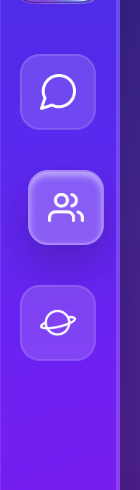
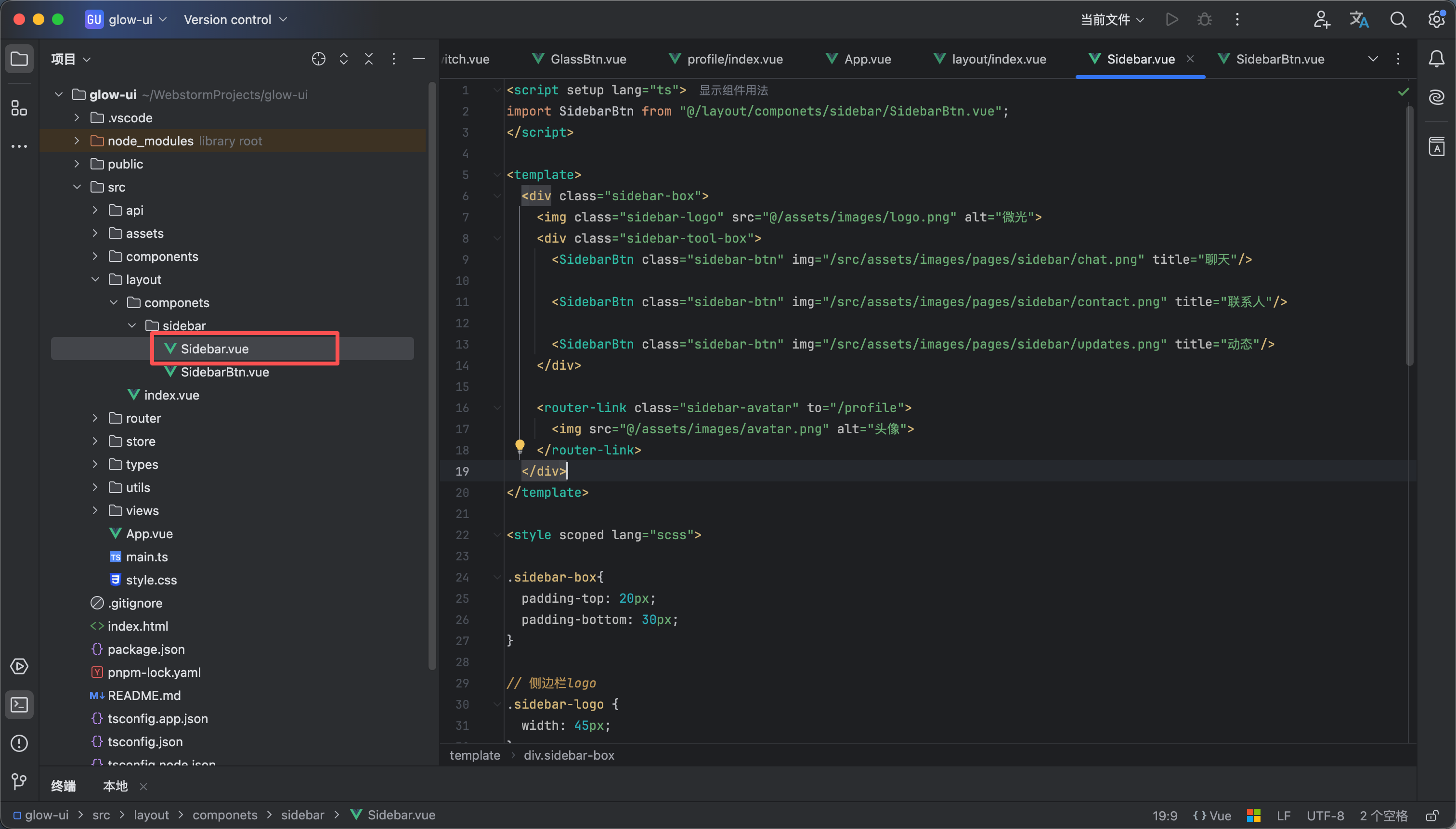
- 如图1所示新建一个组件叫 Sidebar 这个组件就是我们的侧边栏
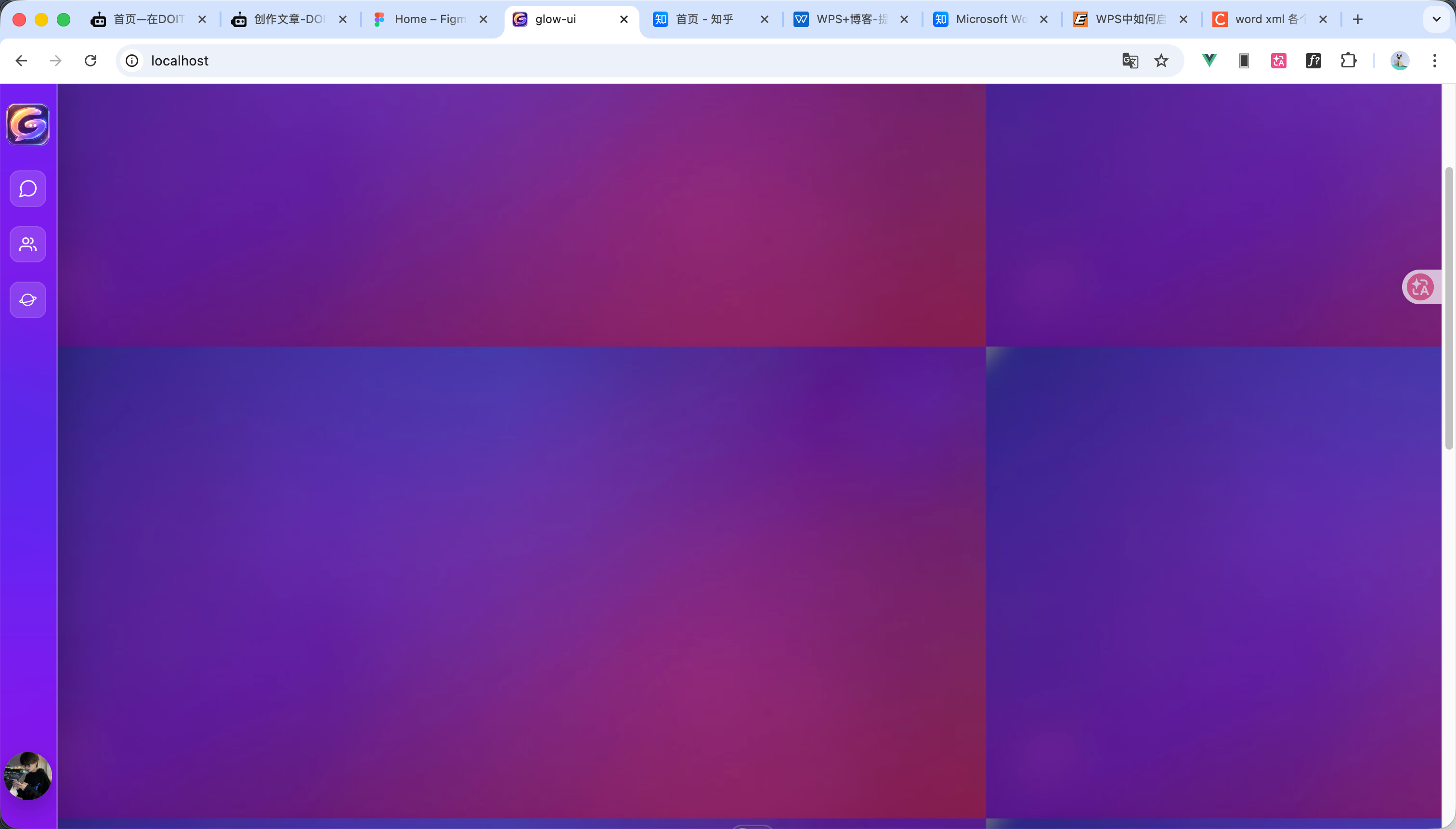
代码内容如下 就长图2所示的效果 后面我们需要把头像换成 当前用户的头像
<script setup lang="ts">
import SidebarBtn from "@/layout/componets/sidebar/SidebarBtn.vue";
import {loginUserStore} from "@/store/loginUser.ts";
let {loginUser} = loginUserStore();
</script>
<template>
<div class="sidebar-box">
<img class="sidebar-logo" src="@/assets/images/logo.png" alt="微光">
<div class="sidebar-tool-box">
<SidebarBtn class="sidebar-btn" img="/src/assets/images/pages/sidebar/chat.png" title="聊天"/>
<SidebarBtn class="sidebar-btn" img="/src/assets/images/pages/sidebar/contact.png" title="联系人"/>
<SidebarBtn class="sidebar-btn" img="/src/assets/images/pages/sidebar/updates.png" title="动态"/>
</div>
<router-link class="sidebar-avatar" to="/profile">
<img :src="loginUser.avatar" alt="头像">
</router-link>
</div>
</template>
<style scoped lang="scss">
.sidebar-box{
padding-top: 20px;
padding-bottom: 30px;
}
// 侧边栏logo
.sidebar-logo {
width: 45px;
}
// 侧边栏的工具部分
.sidebar-tool-box {
display: flex;
flex-direction: column;
gap: 20px;
align-items: center;
}
// 侧边栏按钮样式
.sidebar-btn {
width: 65%;
}
// 侧边栏的头像部分
.sidebar-avatar {
flex-shrink: 0;
margin-top: auto;
border-radius: 50%;
display: flex;
align-items: center;
justify-content: center;
height: 50px;
width: 50px;
overflow: hidden;
background: rgba(255, 255, 255, 0.12);
backdrop-filter: blur(20px);
-webkit-backdrop-filter: blur(20px);
box-shadow:
0 10px 22px rgba(0, 0, 0, 0.22),
inset 0 2px 3px rgba(255, 255, 255, 0.45);
}
.sidebar-avatar > img {
width: 100%;
}
</style>
4
layout文件内容
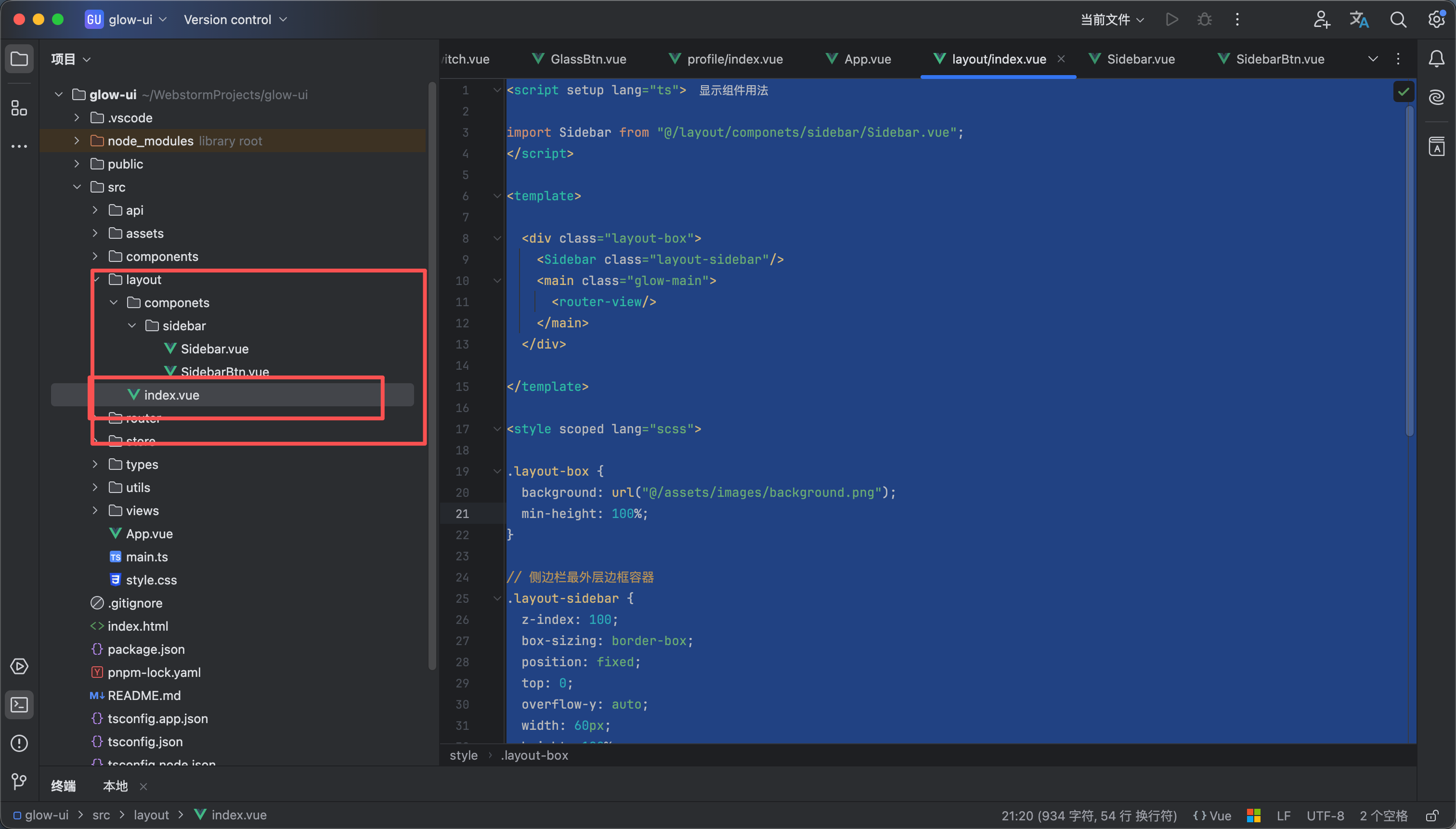
如图1所示创建一个index.vue文件 <router-view/> 相当于就是我们的页面
代码如下
<script setup lang="ts">
import Sidebar from "@/layout/componets/sidebar/Sidebar.vue";
</script>
<template>
<div class="layout-box">
<Sidebar class="layout-sidebar"/>
<main class="glow-main">
<router-view/>
</main>
</div>
</template>
<style scoped lang="scss">
.layout-box {
background: url("@/assets/images/background.png");
min-height: 100%;
}
// 侧边栏最外层边框容器
.layout-sidebar {
z-index: 100;
box-sizing: border-box;
position: fixed;
top: 0;
overflow-y: auto;
width: 60px;
height: 100%;
background: rgba(255, 255, 255, 0.07);
backdrop-filter: blur(80px) saturate(200%);
border-right: 2px solid rgba(255, 255, 255, 0.15);
box-shadow: 6px 0 40px rgba(0, 0, 0, 0.22);
display: flex;
flex-direction: column;
align-items: center;
gap: 25px;
}
// 主体内容部分
.glow-main {
flex: 1;
margin-left: 60px;
}
/* 隐藏滚动条 */
.sidebar-box::-webkit-scrollbar {
display: none;
}
</style>
5
layout路由的使用
12
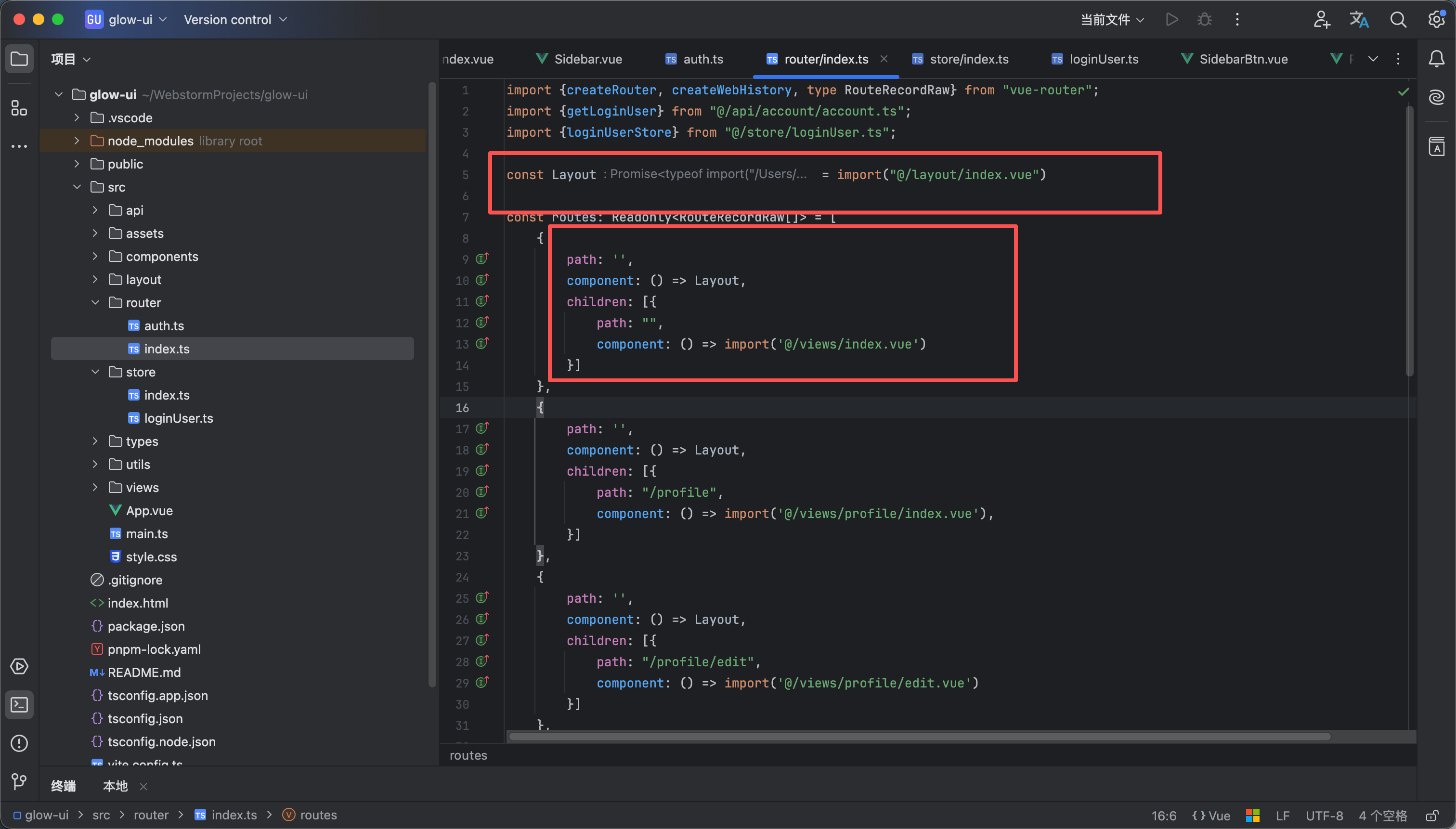
如图所示 先引入 layout
const Layout = import("@/layout/index.vue")
然后在需要的地方layout是他们的父路由
{
path: '',
component: () => Layout,
children: [{
path: "",
component: () => import('@/views/index.vue')
}]
},
 0
0 0
0 0
0 qq空间
qq空间  微博
微博  复制链接
复制链接  分享
分享  本文未经作者允许授权,禁止转载
 更多相关项目
猜你喜欢
评论/提问(已发布 0 条)

 评论
评论  收藏
收藏  分享
分享  下载
下载  举报
举报  回顶部
回顶部